
Instagram Unfollower CheckerDesktop Tutorial
The ultimate handbook on how to download your Instagram data from your computer and uncover who unfollowed you.
In This Guide
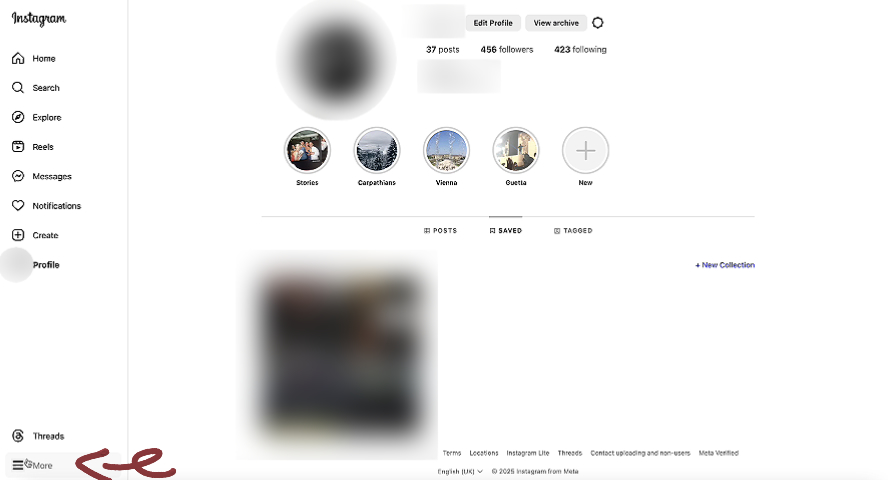
Schritt 1: 'Mehr' auf Ihrem Profil anklicken
Zugriff auf das Instagram-Menü über Ihr Profil
Overview
Erster Schritt zum Download Ihrer Instagram-Daten
Instructions
Öffnen Sie Instagram im Webbrowser
- • Stellen Sie sicher, dass Sie eingeloggt sind
- • Nutzen Sie die aktuellste Browser-Version
- • Der 'Mehr'-Button ist unten in der linken Seitenleiste
Gehen Sie zu Ihrer Profilseite
Suchen Sie den 'Mehr'-Button in der Seitenleiste
Klicken Sie auf 'Mehr'
Troubleshooting
Button 'Mehr' nicht auffindbar
Seite neu laden oder Browser-Cache leeren
Button lässt sich nicht anklicken
Unterstützten Browser nutzen (Chrome, Firefox, Safari, Edge)
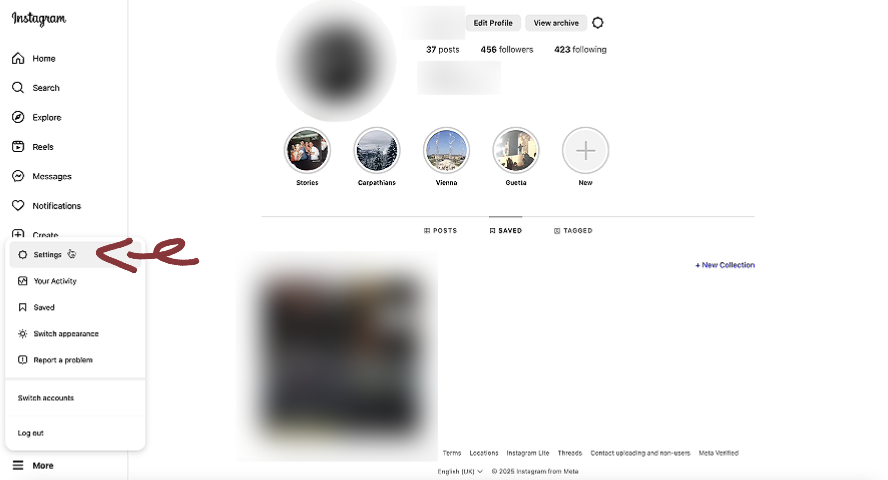
Schritt 2: Einstellungen anklicken
Öffnen Sie die Instagram-Einstellungen über das 'Mehr'-Menü
Overview
Navigieren Sie zur Einstellungsseite
Instructions
Ein Menü erscheint nach dem Klick auf 'Mehr'
- • Einstellungen befindet sich meist unten im 'Mehr'-Menü
- • Verwechseln Sie es nicht mit 'Deine Aktivität'
Suchen Sie 'Einstellungen' in den Menüoptionen
Klicken Sie auf 'Einstellungen'
Troubleshooting
Option 'Einstellungen' nicht sichtbar
Scrollen Sie im 'Mehr'-Menü weiter nach unten
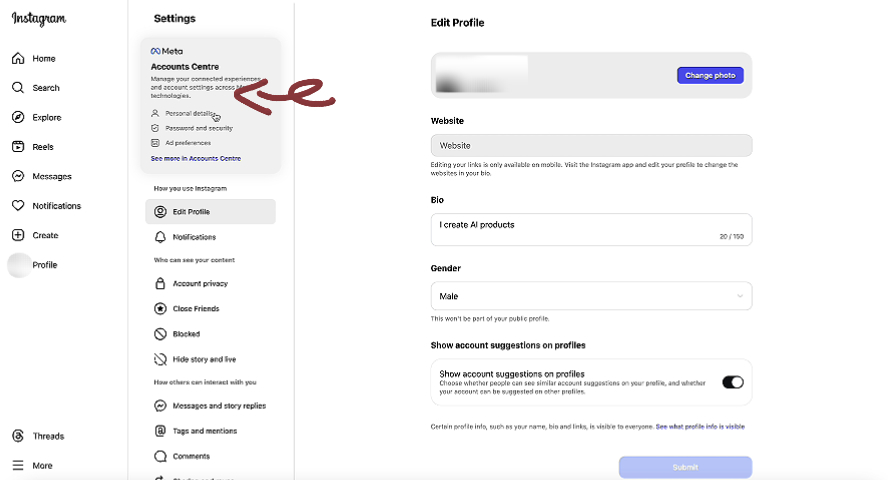
Schritt 3: Kontenübersicht anklicken
Öffnen Sie die Meta-Kontenübersicht für das Datenmanagement
Overview
Navigieren Sie zur Kontenübersicht für die Datenoptionen
Instructions
Suchen Sie in den Einstellungen oben nach 'Kontenübersicht'
- • Die Kontenübersicht verwaltet Daten für Instagram, Facebook und andere Meta-Apps
- • Dies ist der zentrale Ort für Ihr Datenmanagement
Klicken Sie auf 'Kontenübersicht'
Troubleshooting
Kontenübersicht wird nicht angezeigt
Stellen Sie sicher, dass Ihr Instagram-Konto auf dem neuesten Stand ist
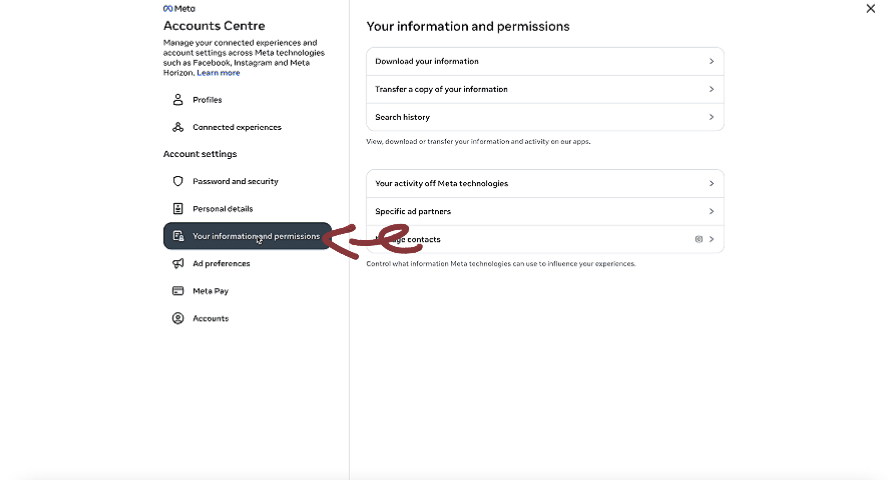
Schritt 4: 'Deine Informationen und Berechtigungen' anklicken
Zugriff auf Daten-Optionen
Overview
Finden Sie die Optionen zum Datendownload
Instructions
Scrollen Sie in der Kontenübersicht zu 'Deine Informationen und Berechtigungen'
- • Dieser Bereich enthält Optionen zum Herunterladen, Übertragen und Löschen
Klicken Sie darauf, um die Optionen zu erweitern
Troubleshooting
Option nicht sichtbar
In der Kontenübersicht weiter nach unten scrollen
Schritt 5: 'Deine Informationen herunterladen' anklicken
Starten Sie den Prozess für den Datendownload
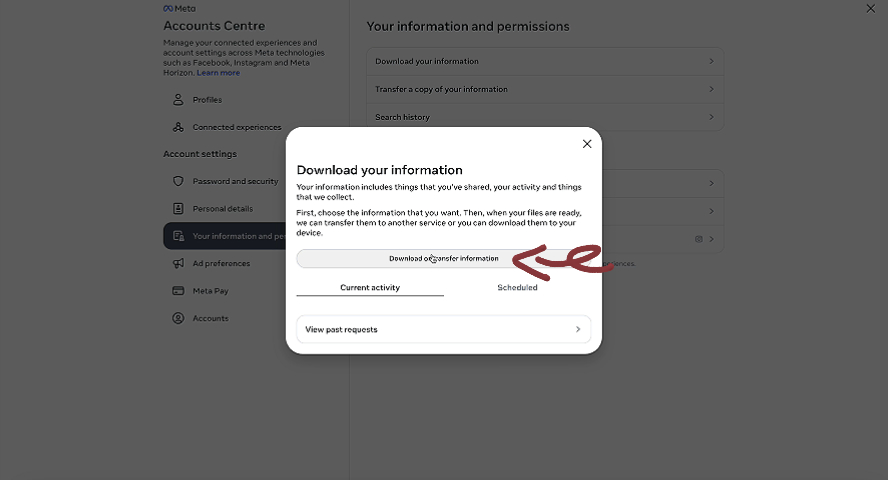
Overview
Starten Sie Ihre Anfrage zum Datendownload
Instructions
Suchen Sie die Option 'Deine Informationen herunterladen'
- • Damit können Sie alle Ihre Instagram-Daten herunterladen
- • Der Prozess kann je nach Kontogröße etwas Zeit in Anspruch nehmen
Klicken Sie darauf, um fortzufahren
Schritt 6: Dateien erstellen
Finalisieren und erstellen Sie Ihr Datenpaket
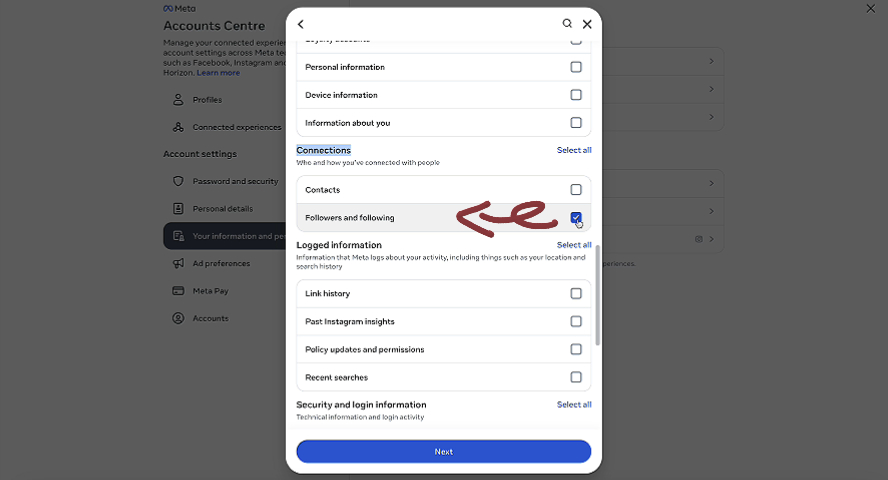
Overview
Schließen Sie die Download-Anfrage ab
Instructions
Überprüfen Sie Ihre Auswahl
- • Prüfen Sie das Format (JSON) noch einmal vor dem Klick
- • Sie erhalten eine E-Mail-Bestätigung, wenn die Dateien bereit sind
Klicken Sie auf 'Dateien erstellen'
Sie erhalten eine Bestätigung
Schritt 7: Konten und Zeitraum wählen
Wählen Sie aus, welche Daten heruntergeladen werden sollen
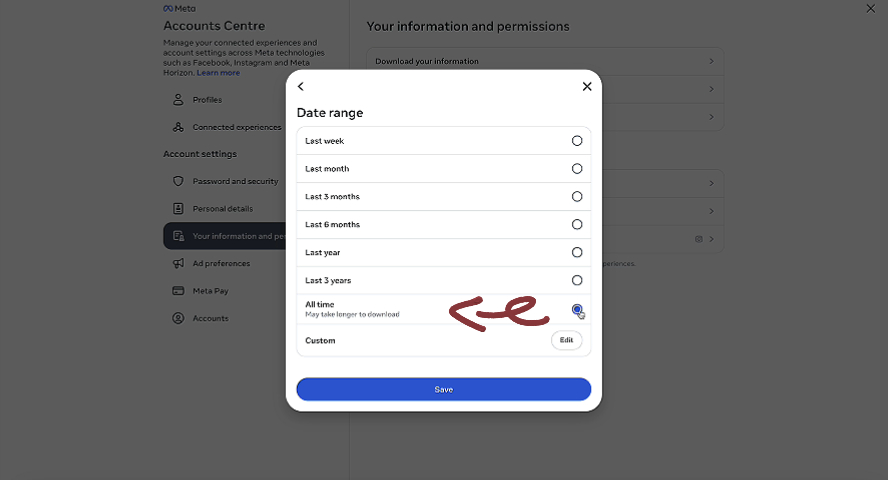
Overview
Konfigurieren Sie Ihre Download-Einstellungen
Instructions
Wählen Sie das/die Instagram-Konto(en) aus
- • Wählen Sie 'Gesamte Zeit' für vollständige Daten
- • Sie können mehrere Konten gleichzeitig wählen
Zeitraum wählen (meist ist 'Gesamte Zeit' voreingestellt)
Auf 'Weiter' oder 'Fortfahren' klicken
Schritt 8: Auf E-Mail-Benachrichtigung warten
Instagram informiert Sie, wenn die Daten bereit sind
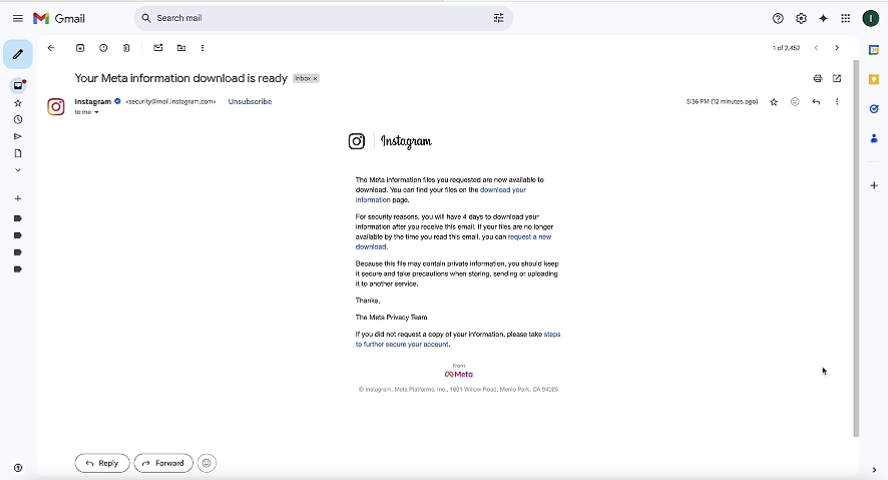
Overview
Ihre Daten werden vorbereitet
Instructions
Sie erhalten eine E-Mail von Instagram
- • Prüfen Sie das mit Instagram verknüpfte E-Mail-Konto
- • Lassen Sie den Browser-Tab offen oder setzen Sie ein Lesezeichen
Dauert meist Minuten bis zu 48 Stunden
Prüfen Sie den Spam-Ordner
Die E-Mail enthält einen Download-Link
Troubleshooting
Keine E-Mail nach 48 Stunden
Status in der Kontenübersicht prüfen oder Anfrage neu stellen
Schritt 9: Auf unserer Website hochladen
Laden Sie die Datei hoch, um Unfollower zu analysieren
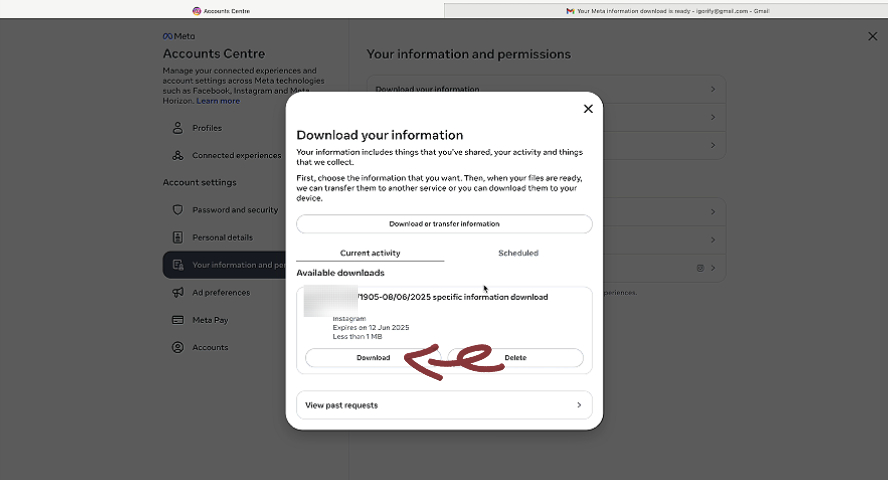
Overview
Analysieren Sie Ihre Instagram-Daten
Instructions
Gehen Sie zu unserer Startseite
- • ZIP nicht entpacken - direkt hochladen
- • Analyse erfolgt im Browser - 100% privat
- • Dauert meist nur wenige Sekunden
ZIP-Datei per Drag-and-Drop reinziehen oder zum Durchsuchen klicken
Auf Abschluss der Analyse warten
Detaillierte Analysen ansehen!
Troubleshooting
Upload schlägt fehl
Prüfen Sie, ob es eine gültige Instagram-ZIP-Datei ist
Format-Fehler
Sicherstellen, dass beim Download JSON gewählt wurde
Desktop Tutorial Tips
Before You Start
- •Make sure you're using a modern web browser
- •Log into your Instagram account on desktop
- •Ensure you have a stable internet connection
- •Have enough storage space for the data download
What to Expect
- •Data request takes 15 minutes to 2 days
- •You'll receive an email when data is ready
- •Download will be a ZIP file with JSON data
- •Process is completely free and secure
Need Mobile Tutorial Instead?
If you prefer to use your mobile device, we also have a complete mobile tutorial available.
Switch to Mobile TutorialReady to See Who Unfollowed You?
Follow our complete desktop tutorial to learn how to safely check who unfollowed you on Instagram.
Go to Homepage